Few things test your patience like a laptop that takes ages to boot or freezes when you open a browser tab. Before you shop for a new machine, try a few simple fixes. Many slowdowns come from software clutter rather than ageing hardware.
Find Out What Is Slowing You Down
Open Task Manager on Windows or Activity Monitor on macOS and sort by CPU and memory usage. This quickly shows which apps or background processes are hogging resources. Often a single misbehaving program is the real culprit.
Eight Fixes Worth Trying
- Disable unnecessary startup apps so your laptop boots faster.
- Free up storage space; keeping at least 15% of the drive empty helps performance.
- Uninstall programs you no longer use, including preinstalled trial software.
- Limit browser extensions and open tabs, which quietly consume memory.
- Install system and driver updates to get performance and security fixes.
- Run a malware scan with a reputable security tool.
- Restart regularly instead of only closing the lid for weeks.
- Check power settings and choose a balanced or performance mode when plugged in.
Consider Simple Hardware Upgrades
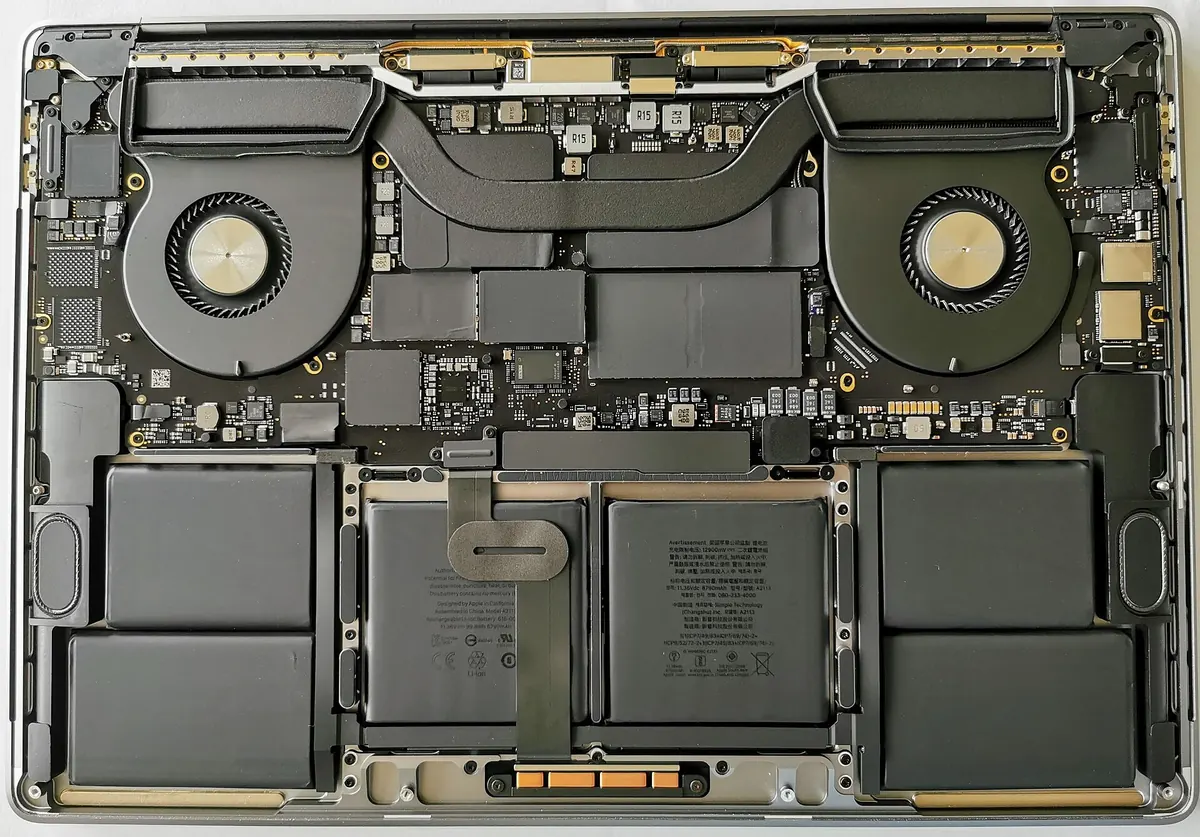
If your laptop still uses a traditional hard drive, switching to a solid-state drive is often the single biggest speed boost. Adding more RAM can also help if you multitask heavily. Check your model’s specifications first, as some laptops have memory soldered to the board.
Keep It Running Smoothly
Heat can throttle performance, so keep vents clear and avoid using the laptop on soft surfaces like beds. A quick monthly routine of updates, cleanup and restarts prevents most slowdowns from returning.
Browse more how-to guides in our tech category, or see what else is new on Ztoog.com.
Conclusion
Learning how to speed up a slow laptop rarely requires expert skills. Start by identifying resource-hungry apps, clean up storage and keep software updated. If that is not enough, an SSD or RAM upgrade can give an older machine a second life.